How to use vendor search
Watch the walkthrough, then search and filter HR and workforce vendors by location, service, and company name.
Ready to start?
Open vendor search, refine the results with filters, and use company search when you need to find a specific provider.
Use vendor search
Step-by-step guide
Show me steps
Use this written walkthrough to filter vendors by location and service, reset filters, and search directly by company name.
Step-by-step guide
Show me steps
Use this written walkthrough to filter vendors by location and service, reset filters, and search directly by company name.
-
Step 1 Open vendor search
Click Search Vendors to open the vendor search interface within Workforce Directory.

-
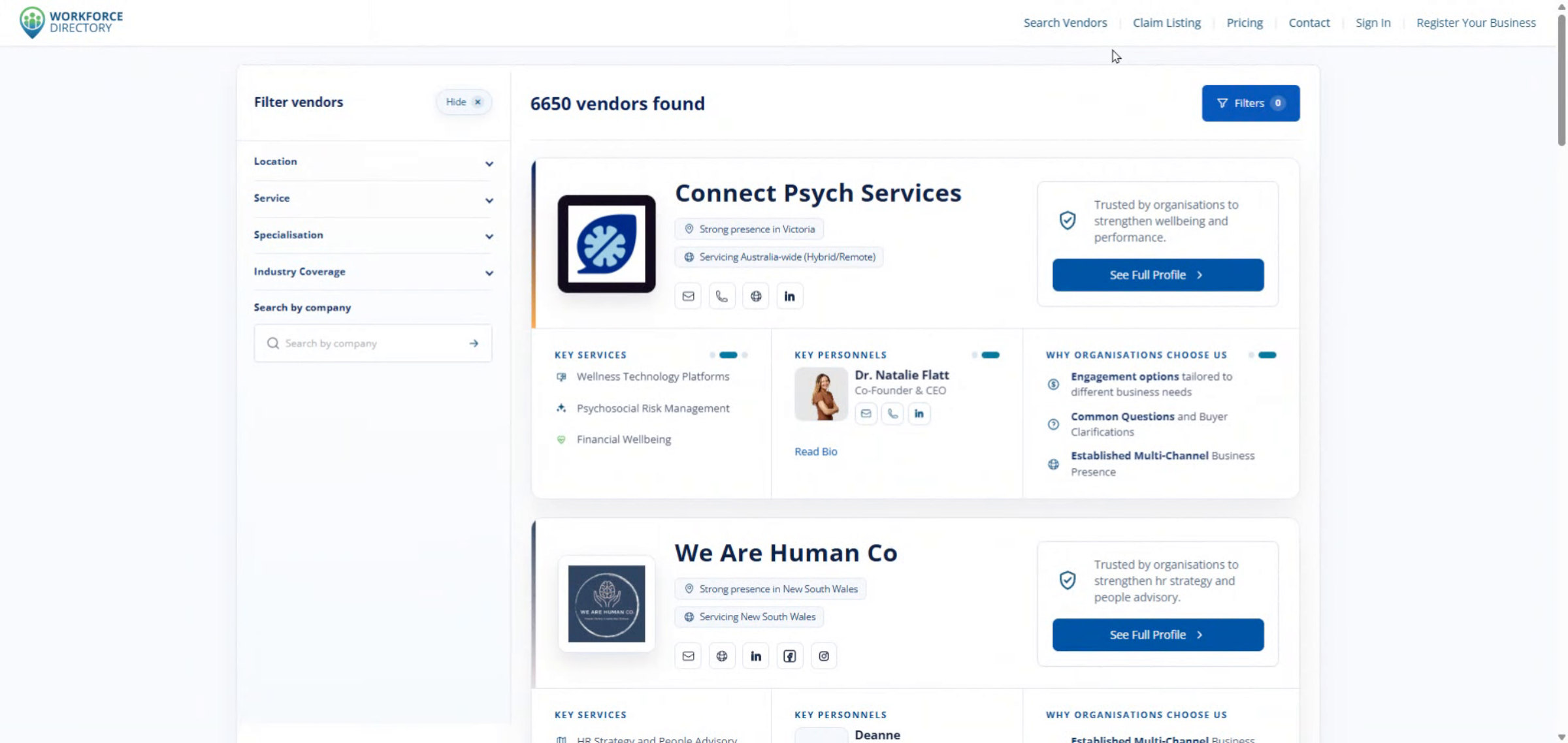
Step 2 Open the location filter
Use the advanced filters to refine results by location, service, specialisations, and industry coverage.
-
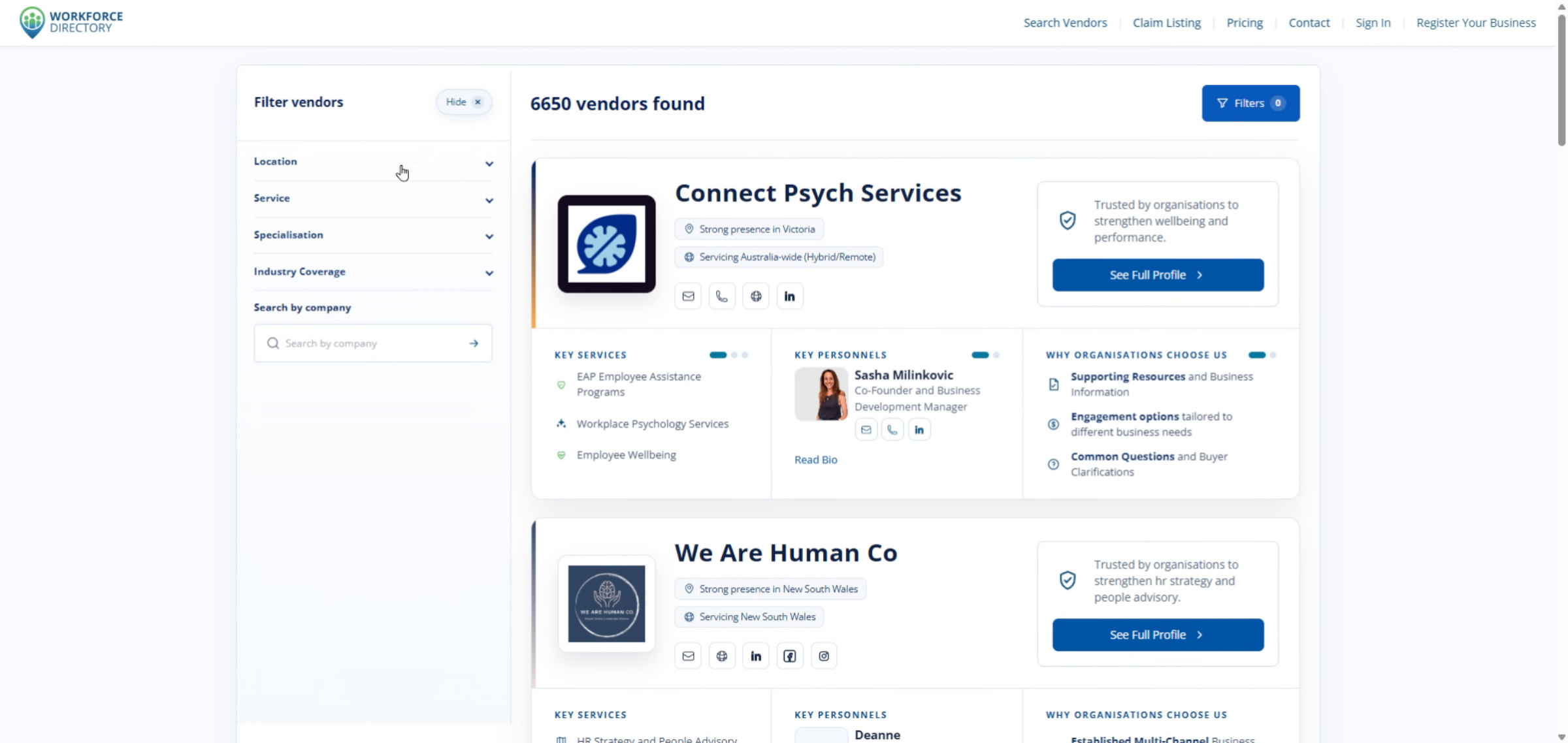
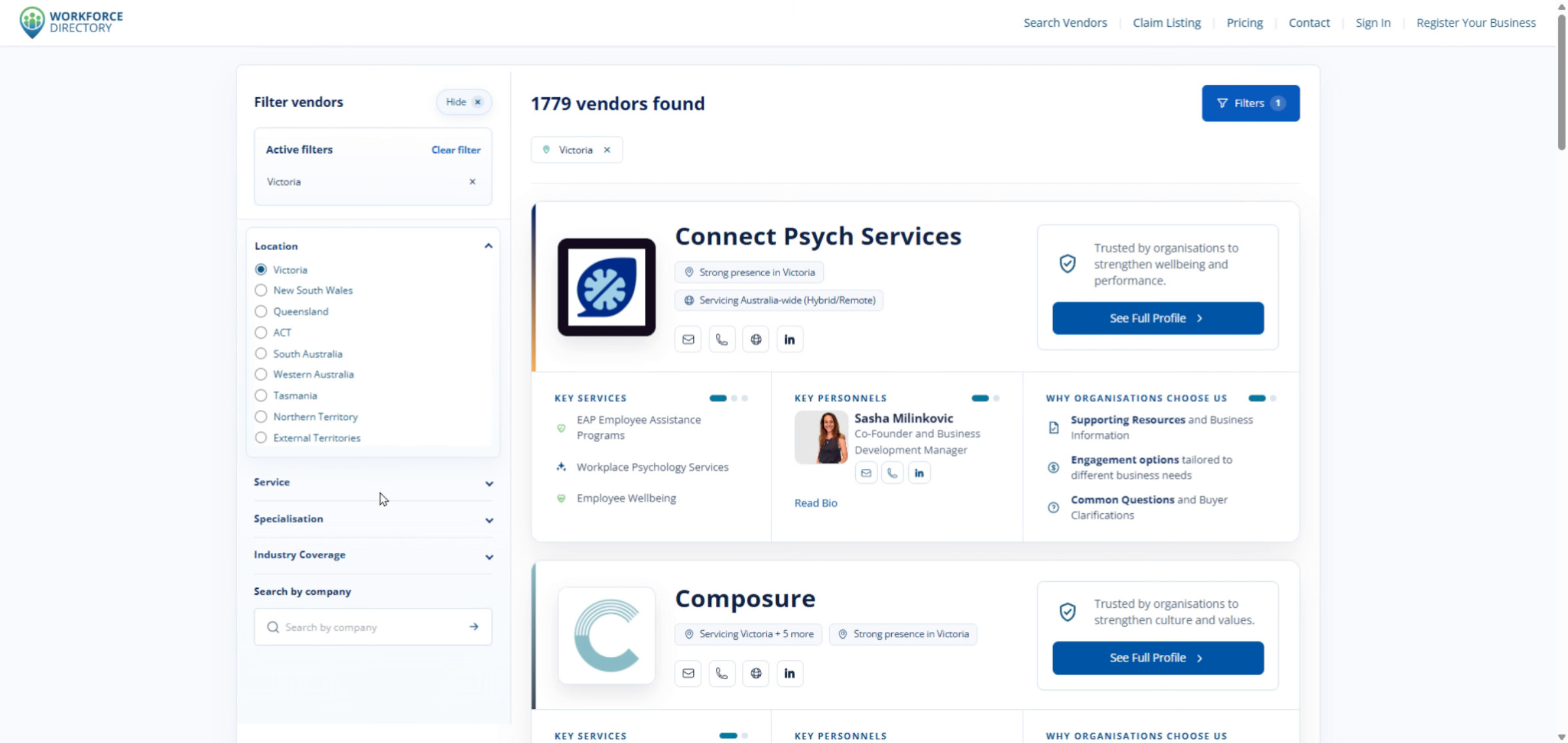
Step 3 Select a location
Choose a location, such as Victoria, to narrow results to vendors that service that region.
-
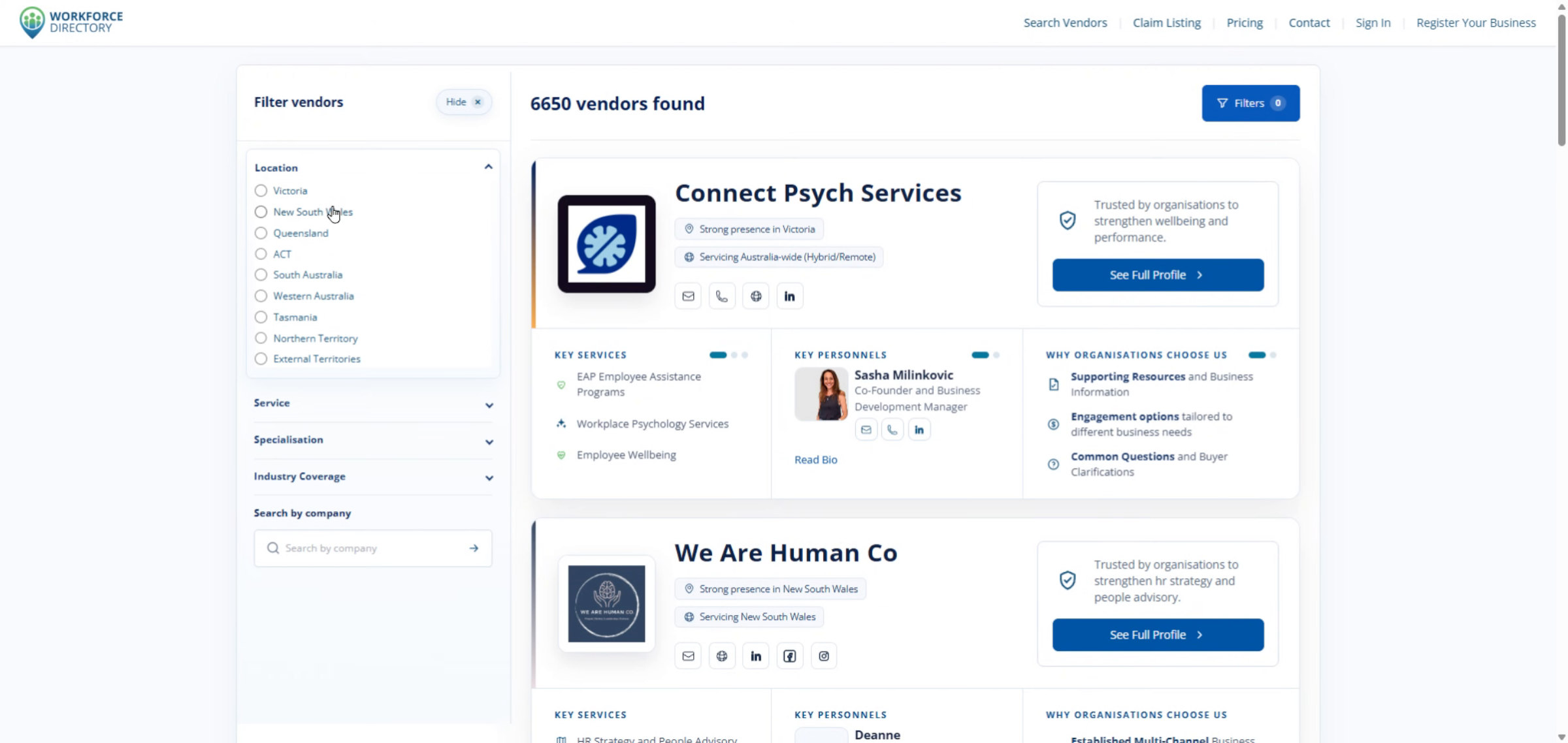
Step 4 Open the service filter
Click the Service filter to choose the type of support you need from vendors.
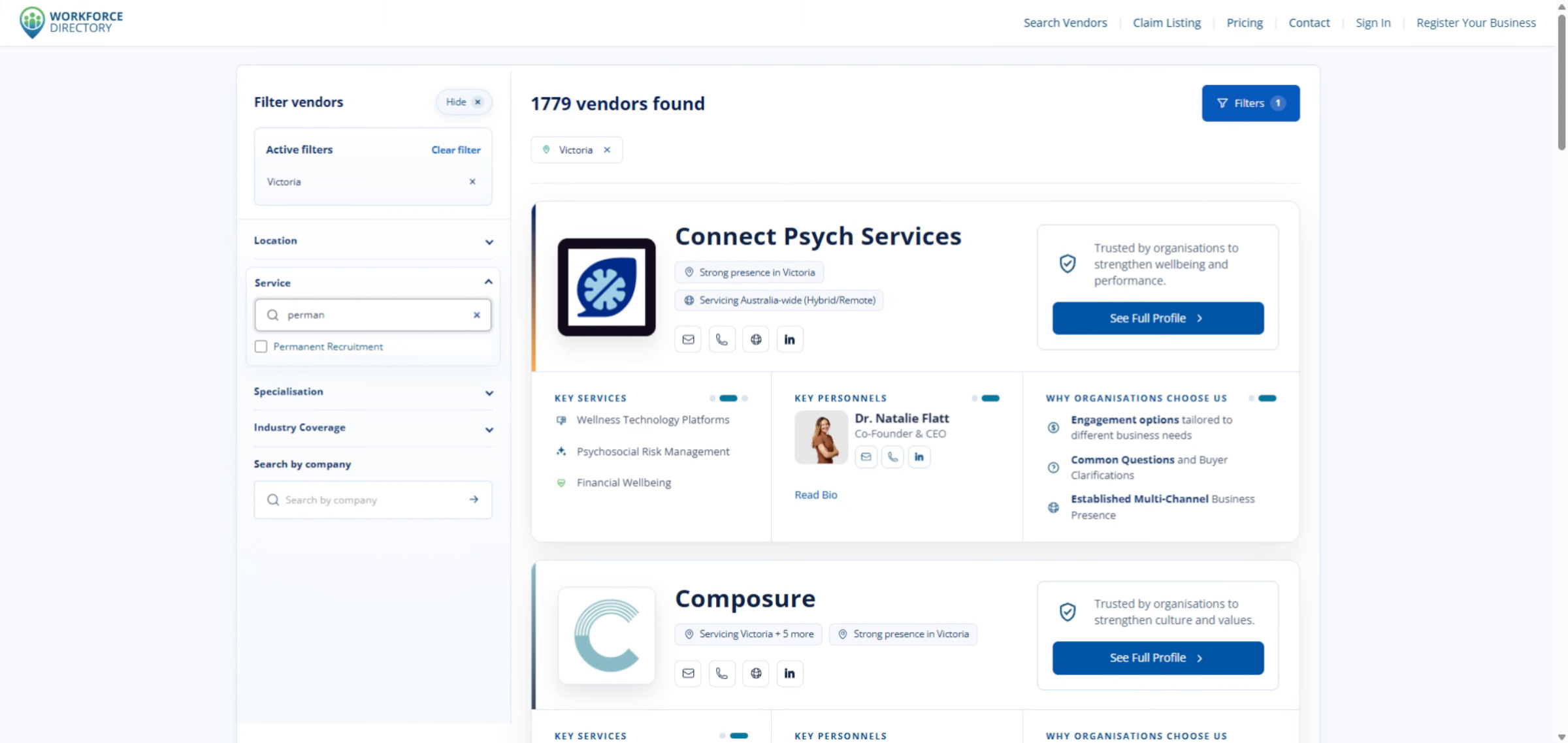
-
Step 5 Choose a service
Use the service search field to enter and select the service you are looking for.
-
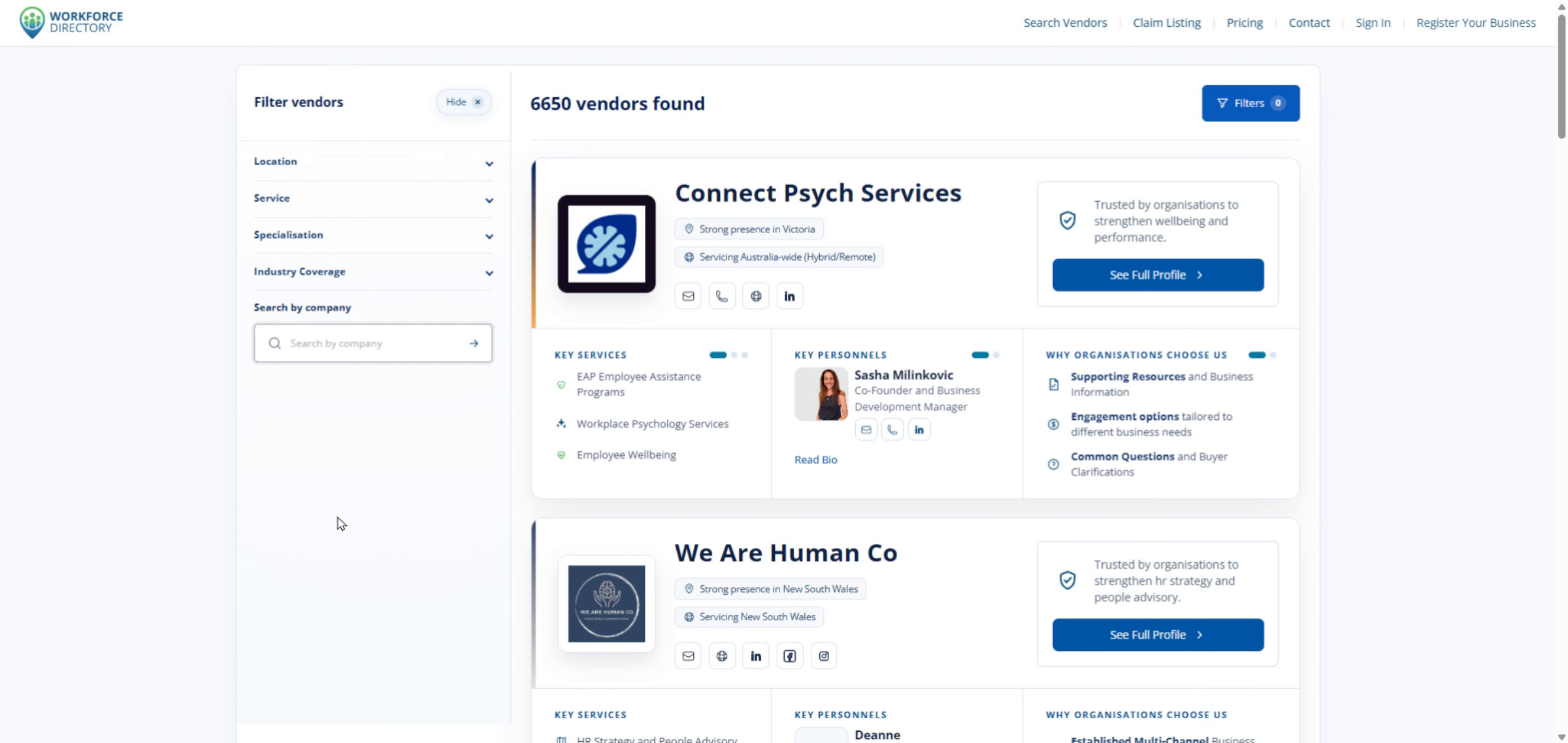
Step 6 Reset filters
Click Clear Filter to remove all applied filters and start a new search.
-
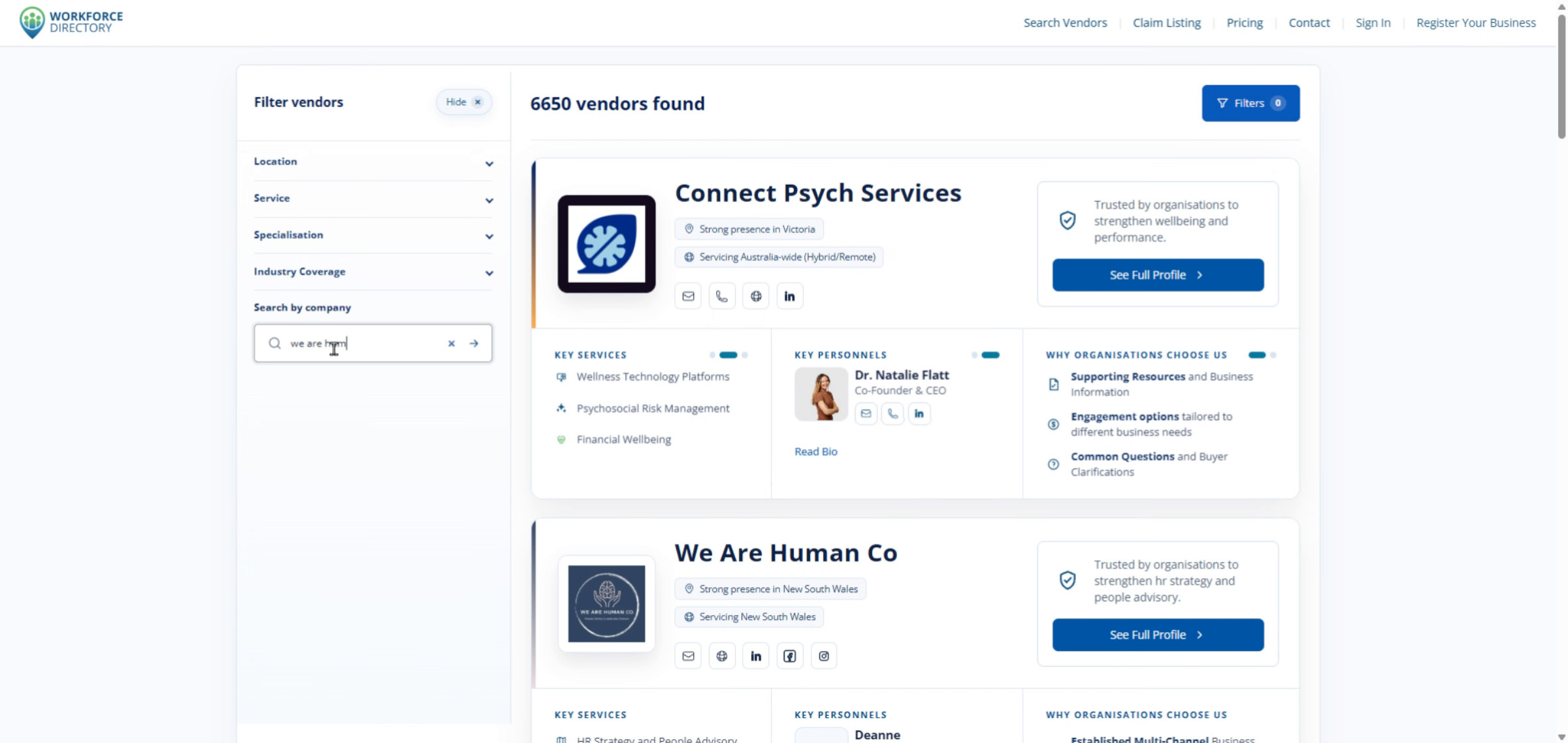
Step 7 Switch to company search
Use Search by company when you want to find a specific provider directly.
-
Step 8 Enter a company name
Type the company name into the company search field.
-
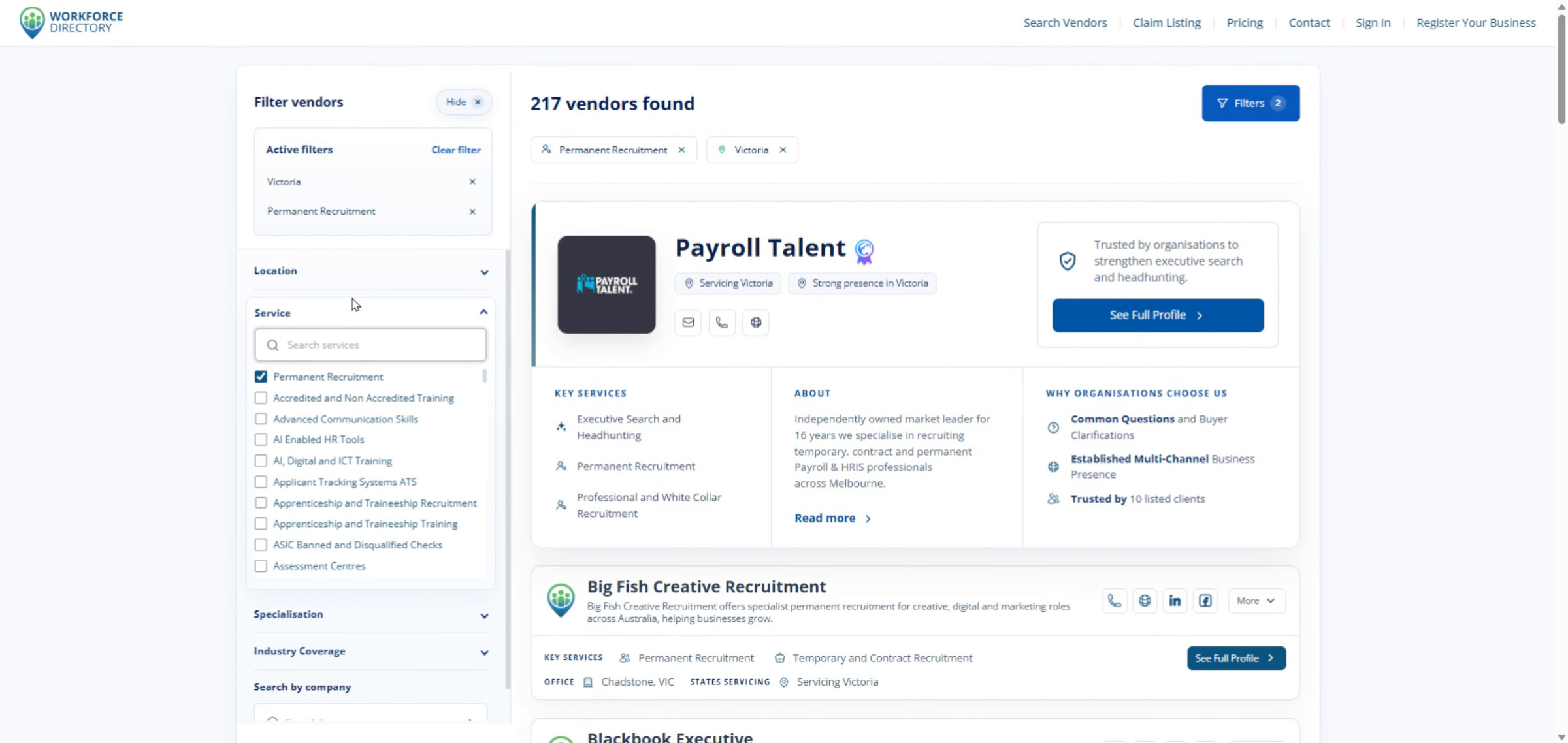
Step 9 Review filtered results
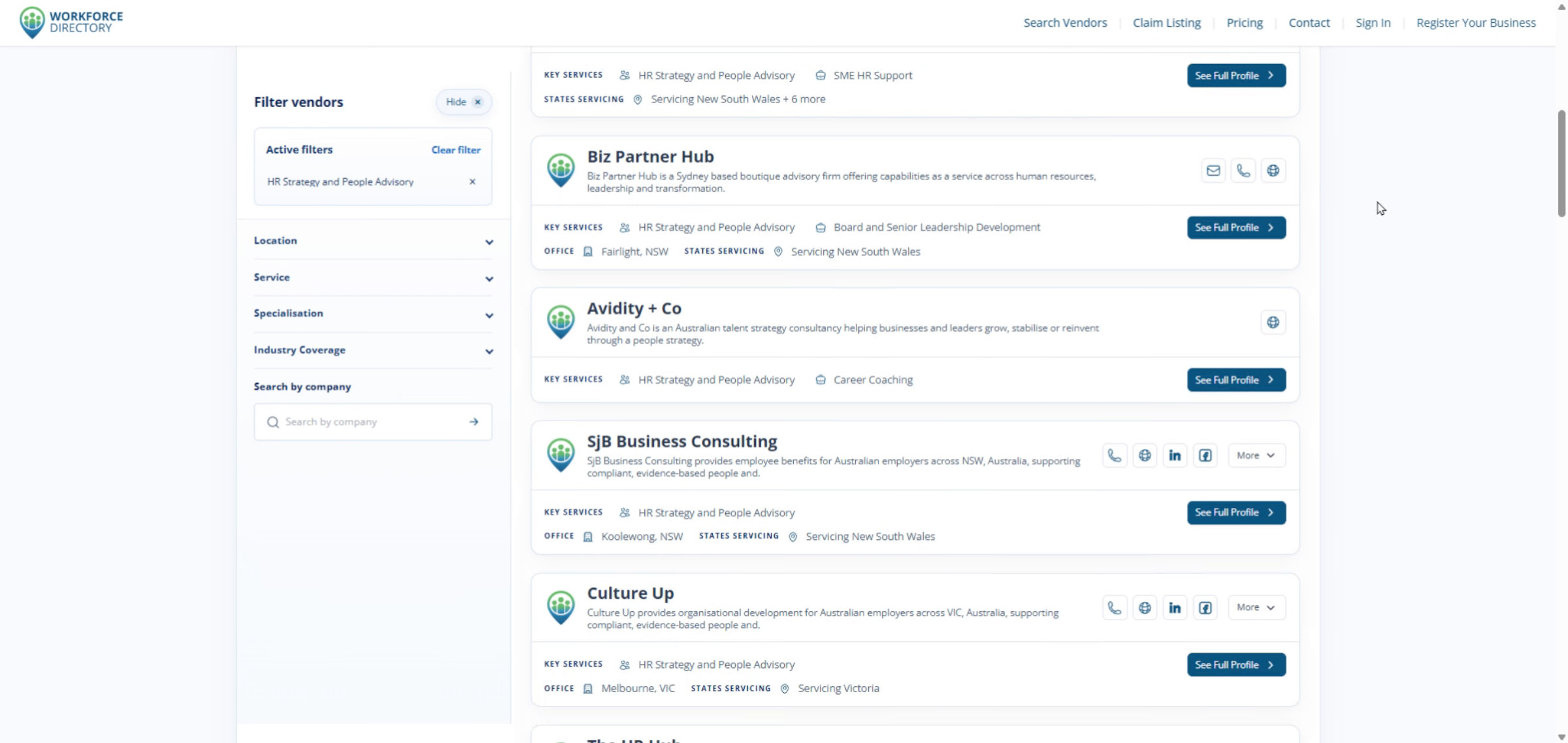
Browse the vendors offering the selected service or matching the company search.
-
Step 10 Choose the right provider
Use the search results to compare vendors and find the right workforce solution for your organisation.