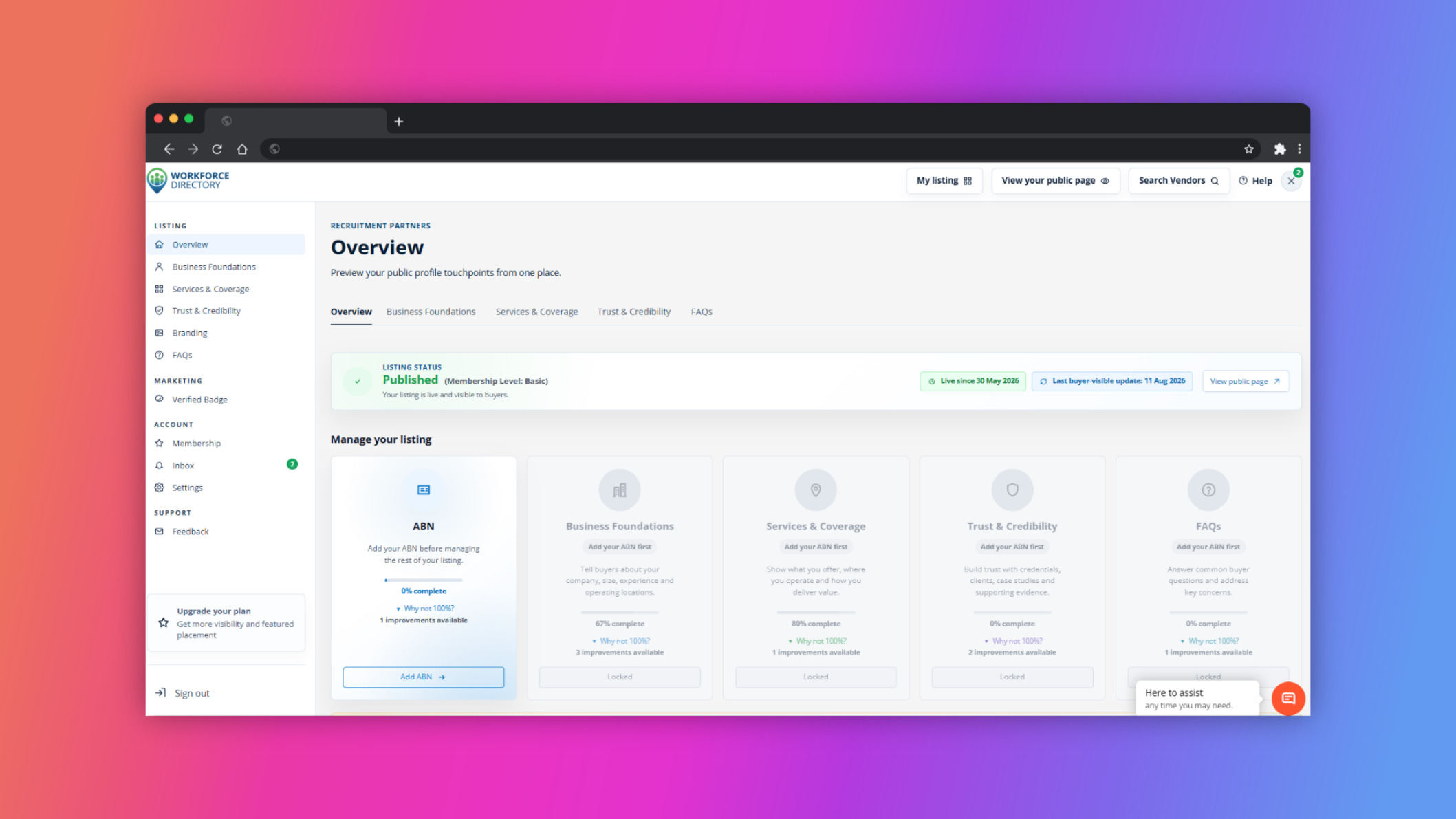
How to claim your business listing
Watch the walkthrough, then use the claim page to verify ownership and request access to your existing Workforce Directory listing.
Ready to start?
Go to the claim page, search for your business, and follow the verification steps shown for your listing.
Claim a listing
Step-by-step guide
Show me steps
Use this written walkthrough to claim your vendor listing, verify your email, and open access to your listing dashboard.
Step-by-step guide
Show me steps
Use this written walkthrough to claim your vendor listing, verify your email, and open access to your listing dashboard.
-
Step 1 Claim your vendor listing on Workforce Directory
This guide walks you through claiming an existing vendor listing on Workforce Directory Australia.

-
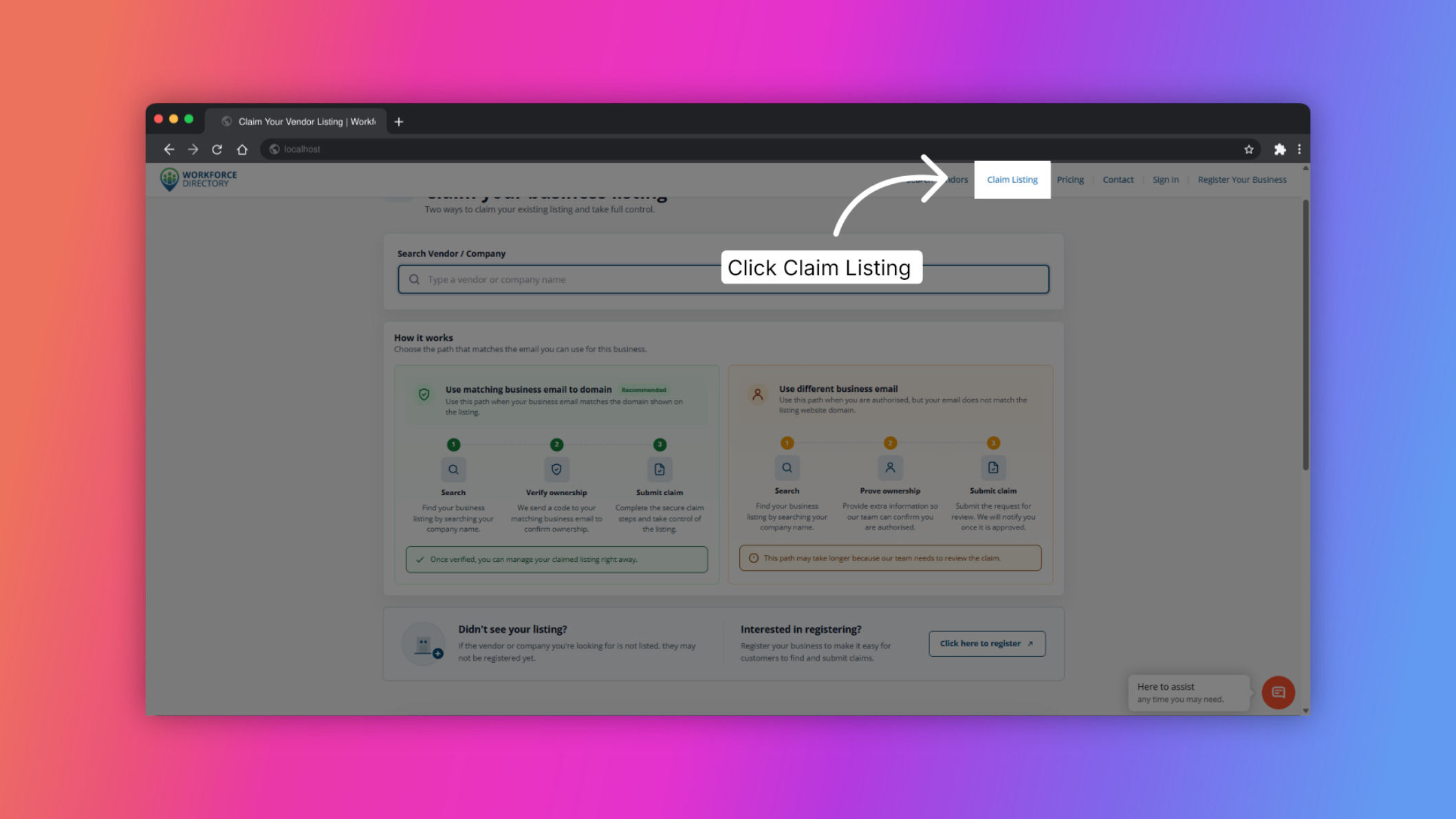
Step 2 Start the claim process
Click Claim Listing to begin the process of claiming your vendor listing.
-
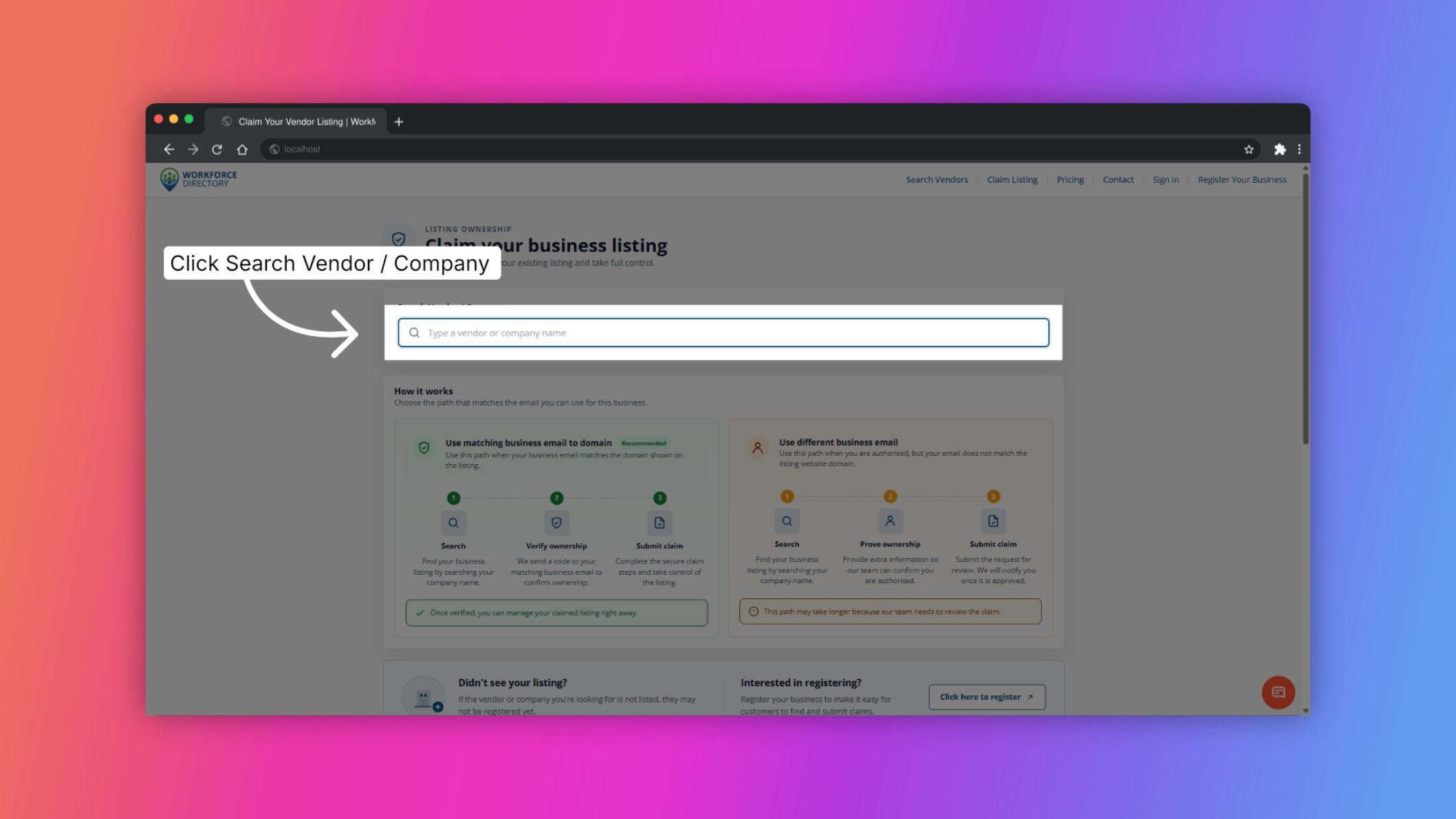
Step 3 Open vendor search
Click the Search Vendor or company name field and start typing your business name.
-
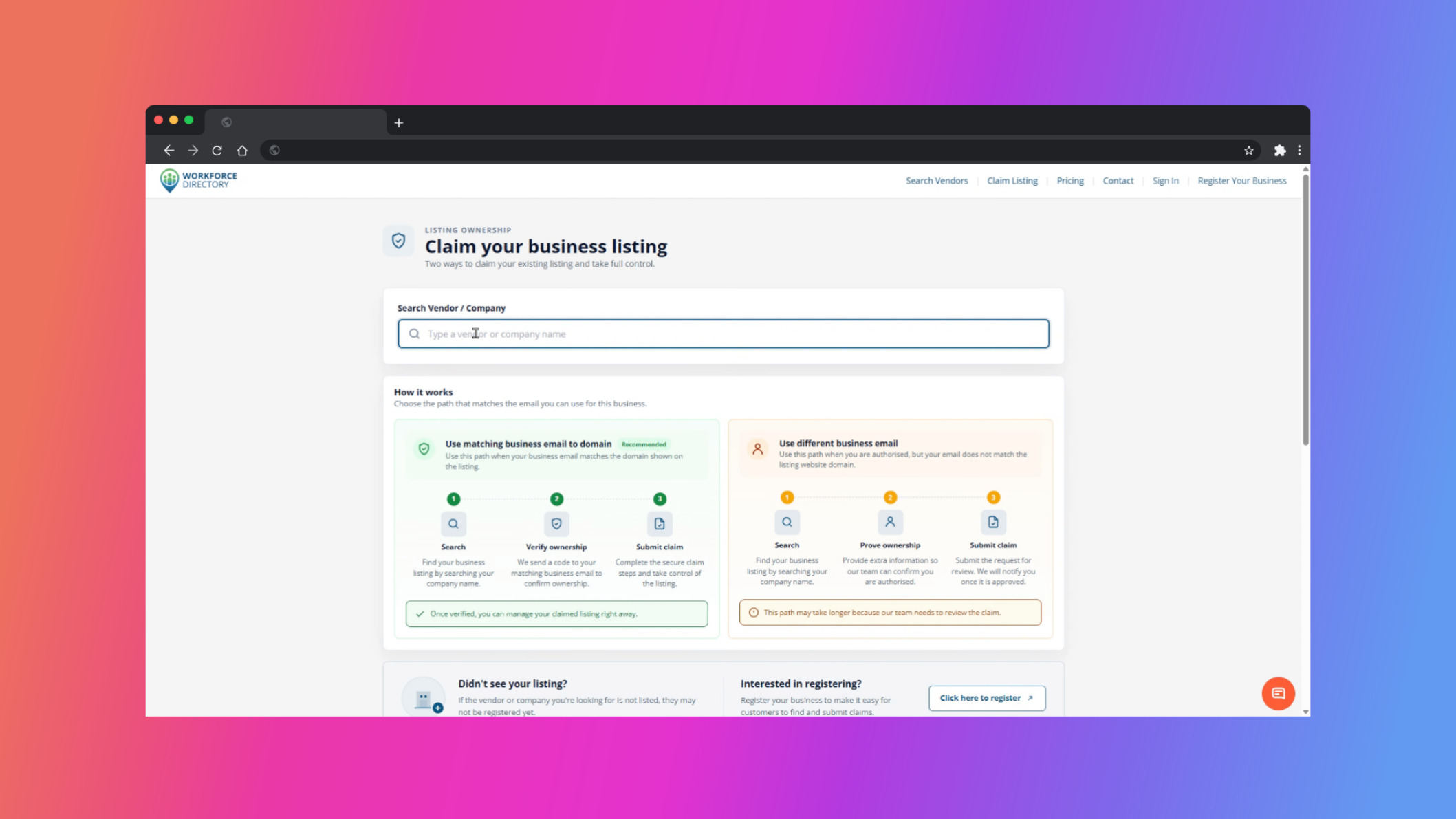
Step 4 Enter your search term
Type your company name into the search field to locate your existing listing.
-
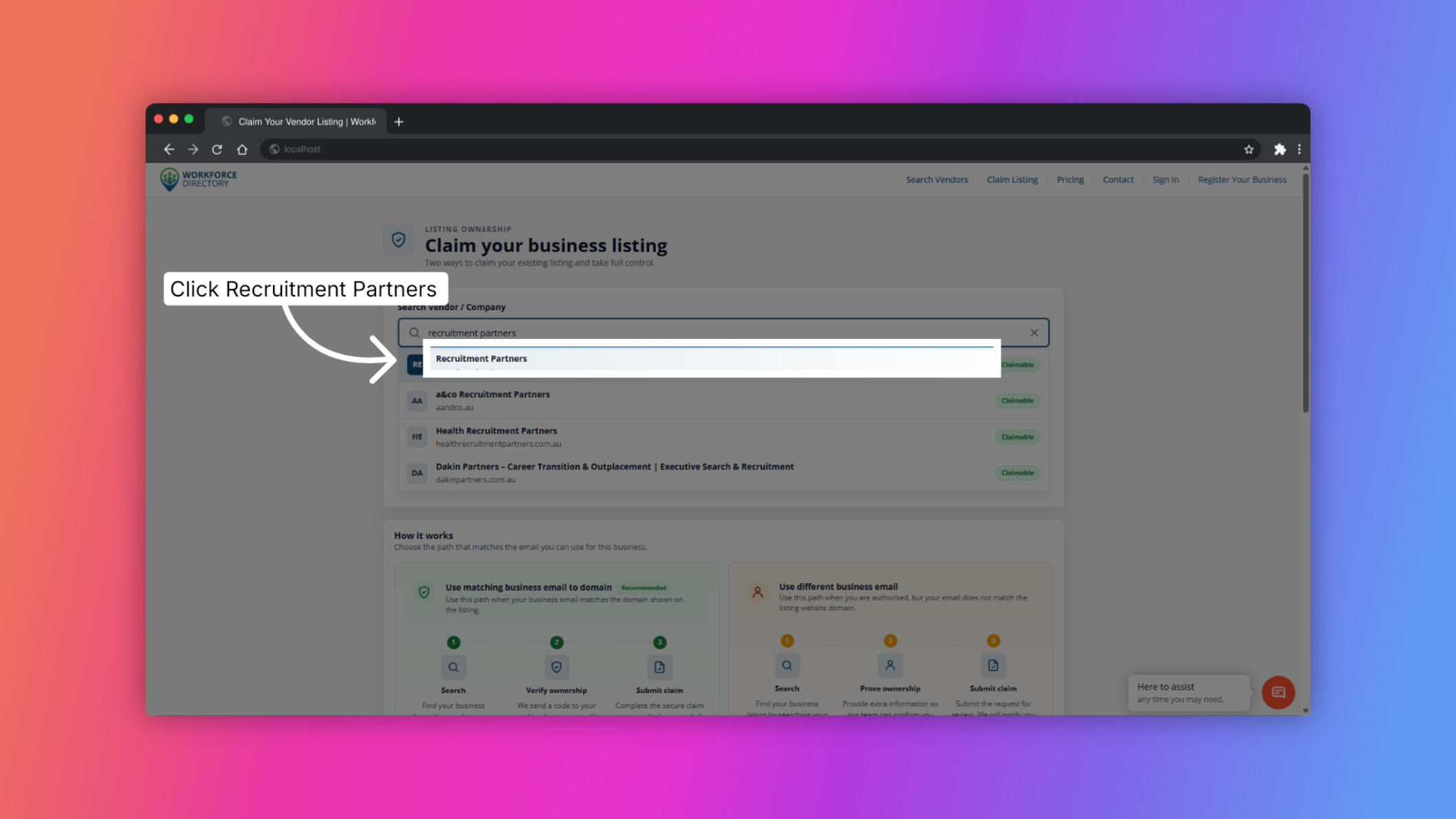
Step 5 Select your company from the results
Choose your company from the search results to continue with the claim.
-
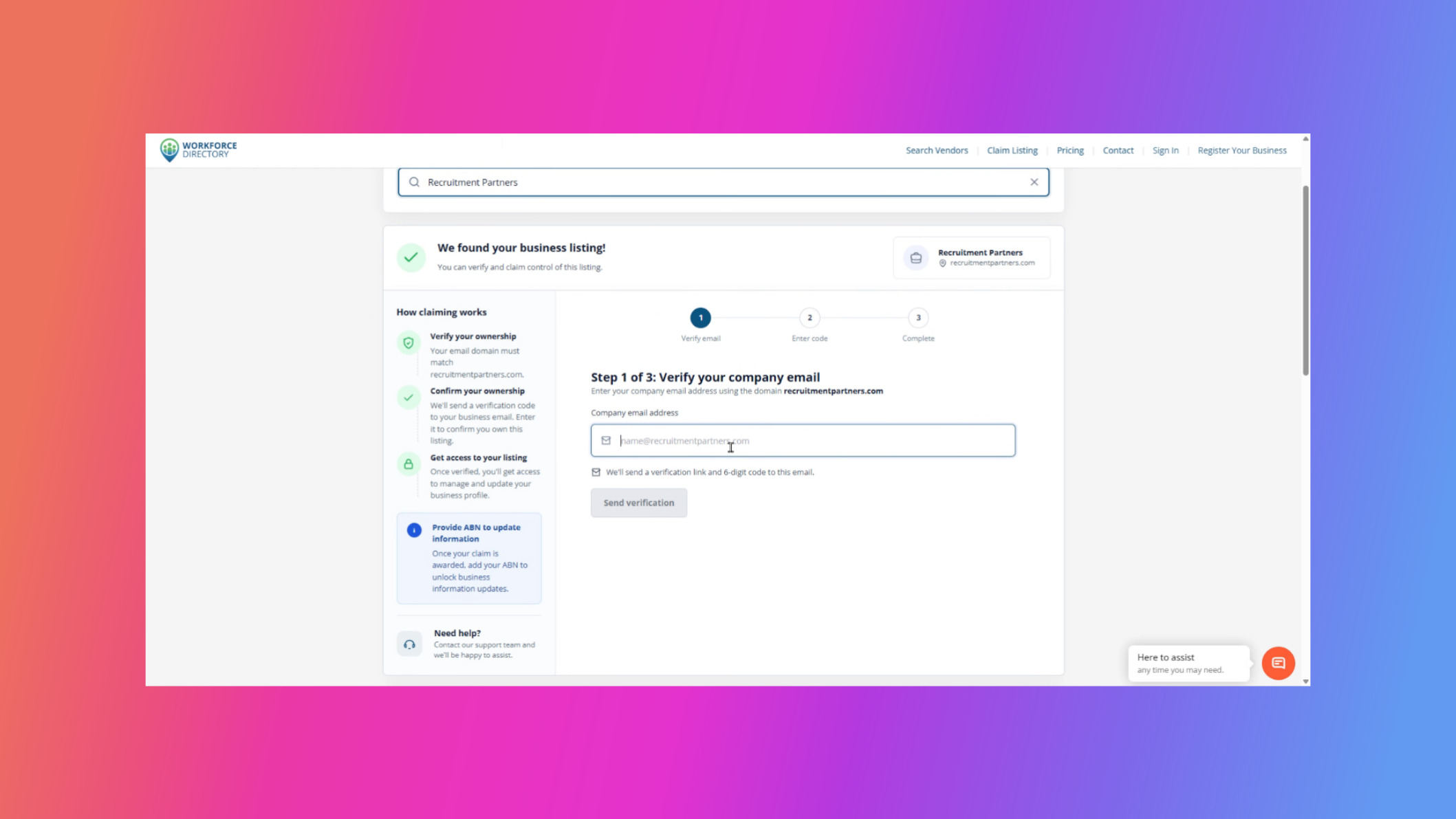
Step 6 Provide your company email
Enter the business email address you want to use for verification.
-
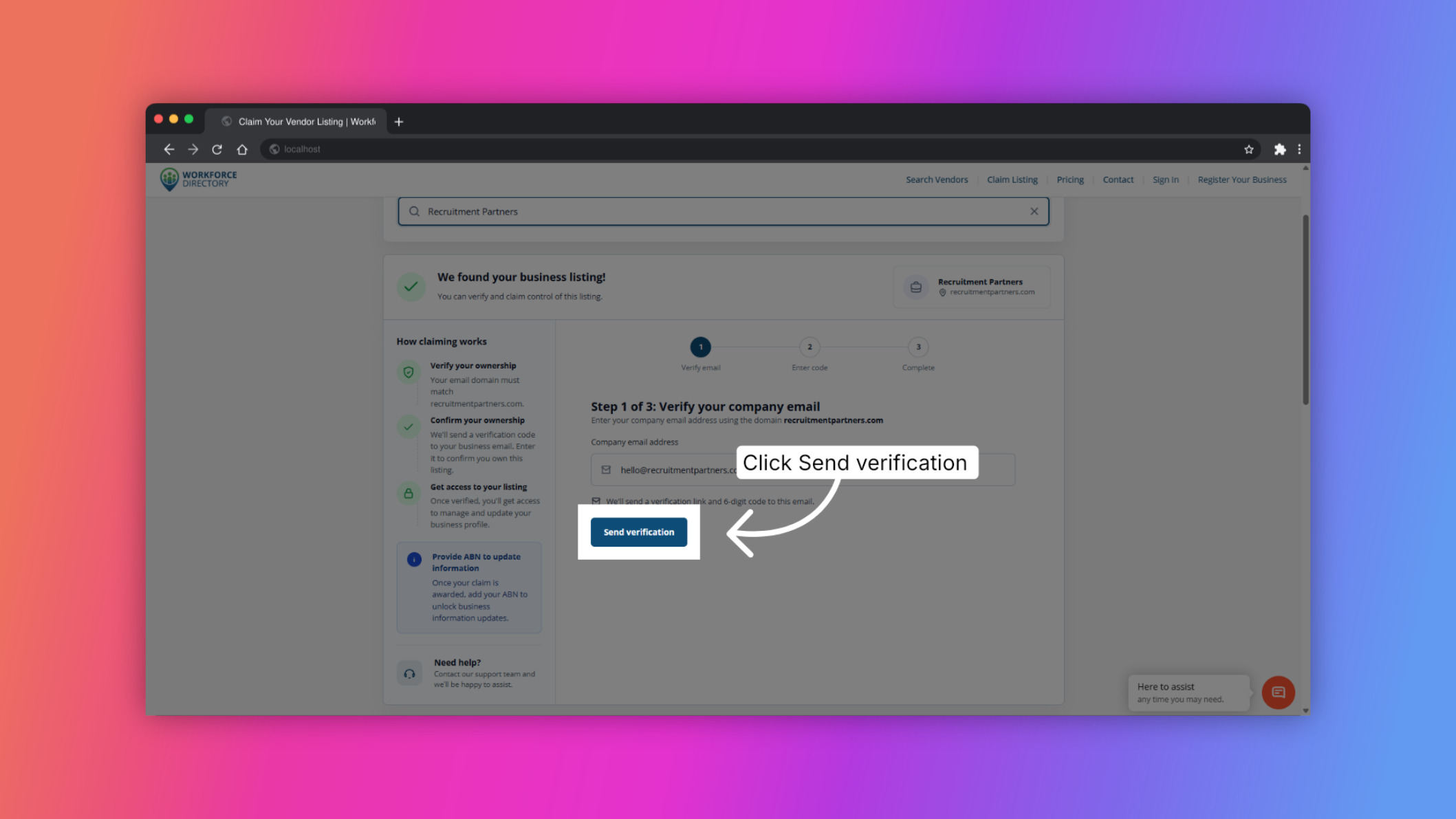
Step 7 Send the verification email
Click Send verification to receive a 6-digit verification code by email.
-
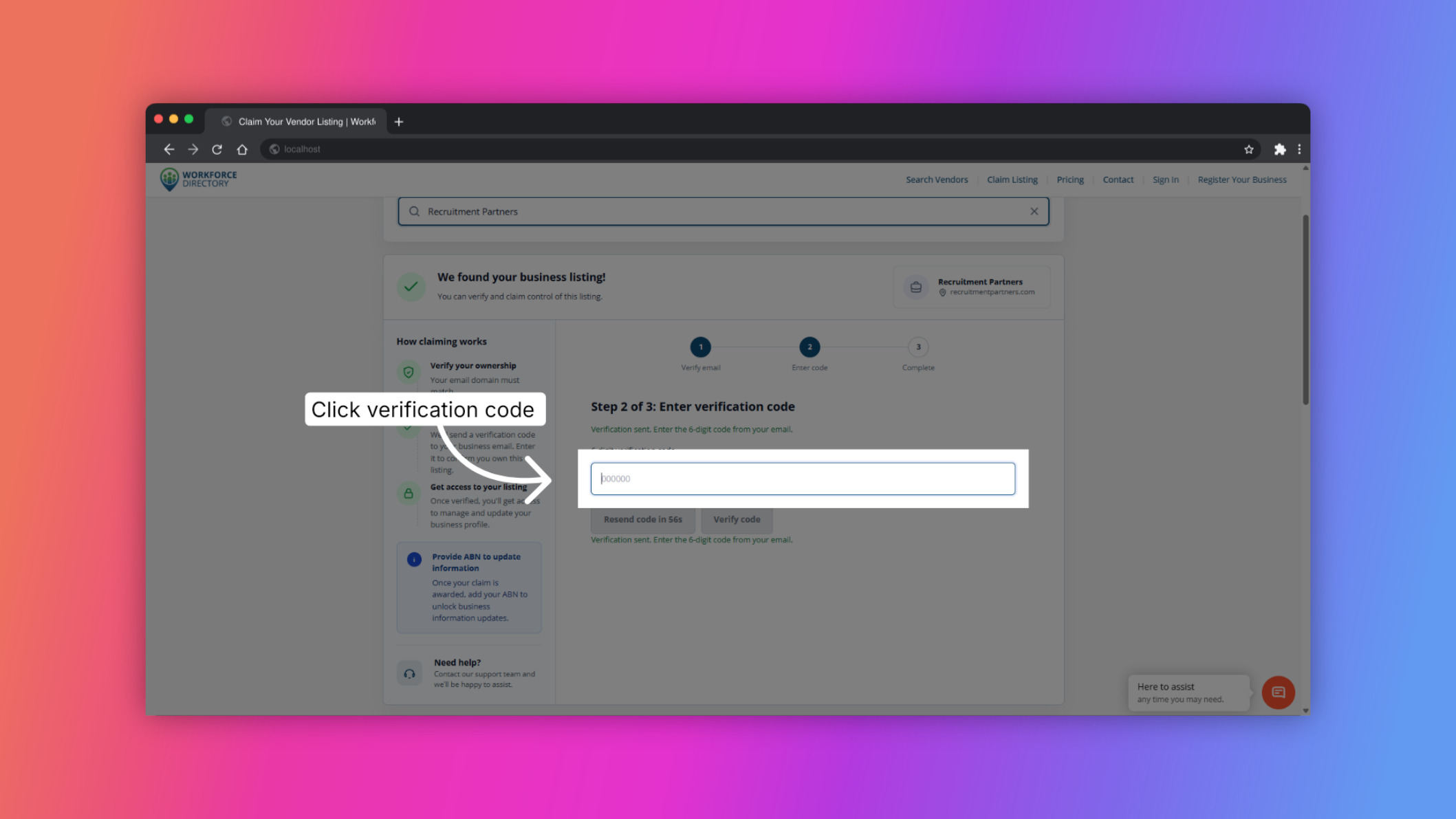
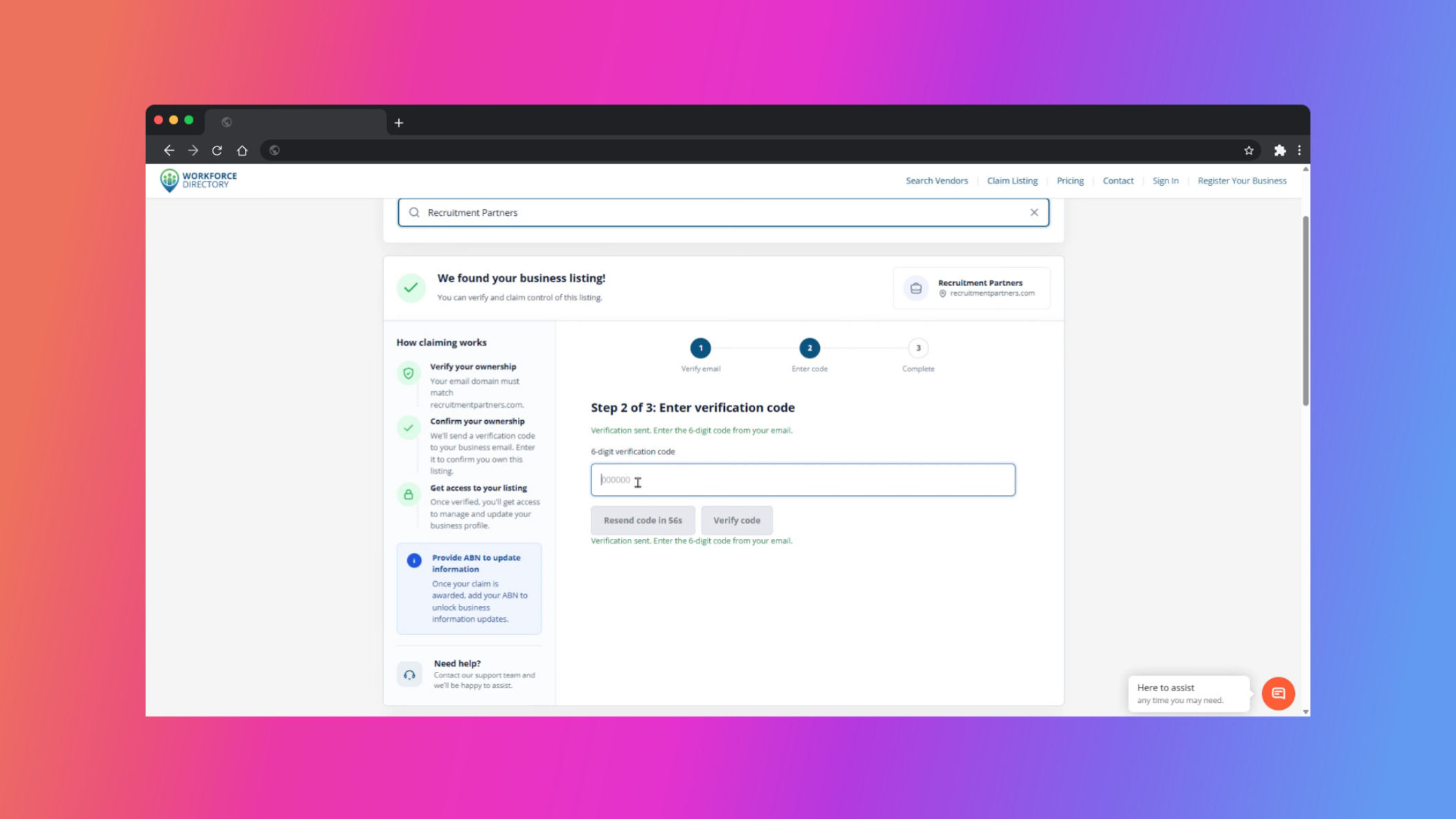
Step 8 Open the verification code field
Click the 6-digit verification code field when you are ready to enter the code from your email.
-
Step 9 Enter the verification code
Type or paste the 6-digit verification code you received by email.
-
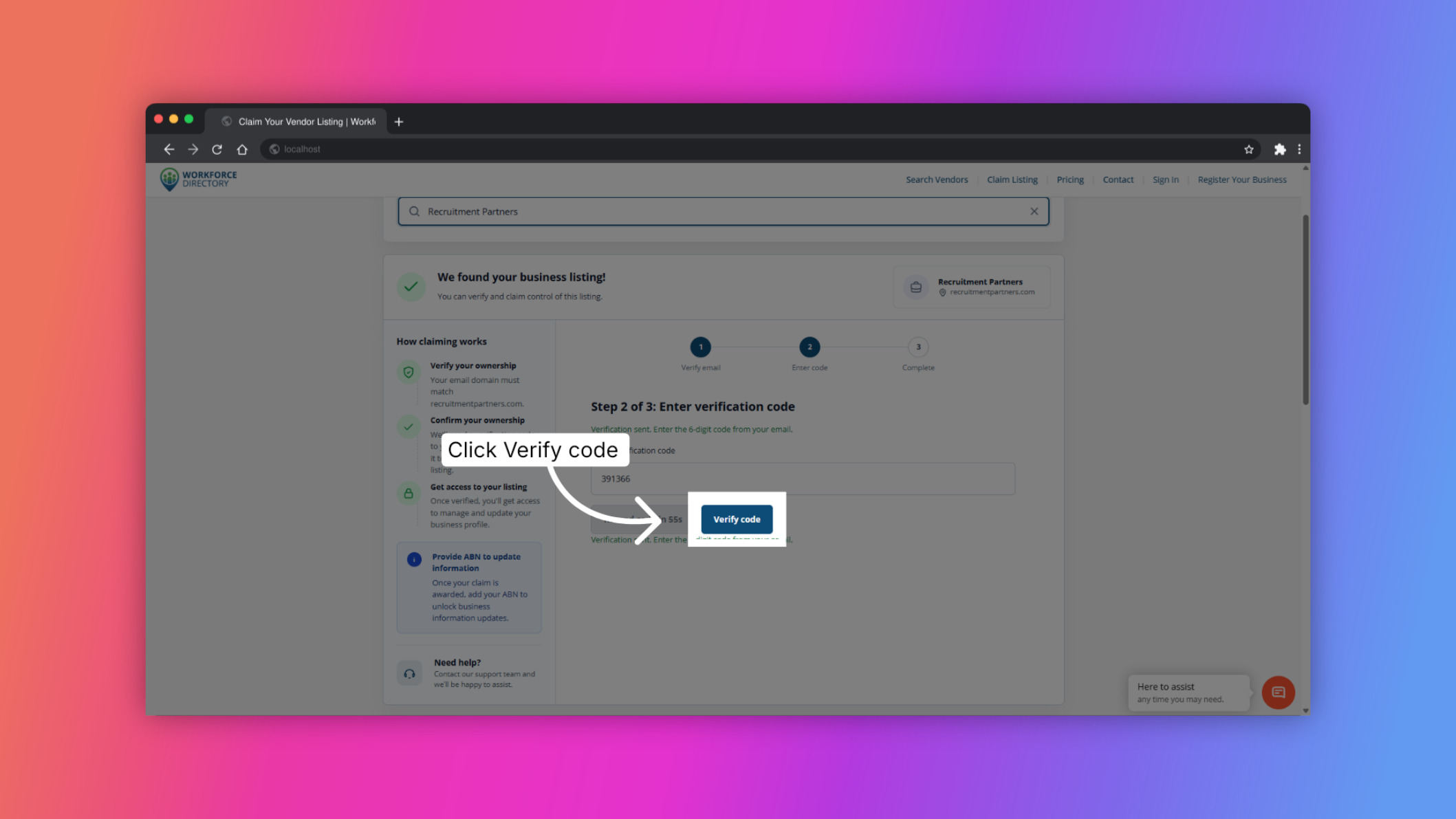
Step 10 Verify the code
Click Verify code to confirm your email access and continue the claim.
-
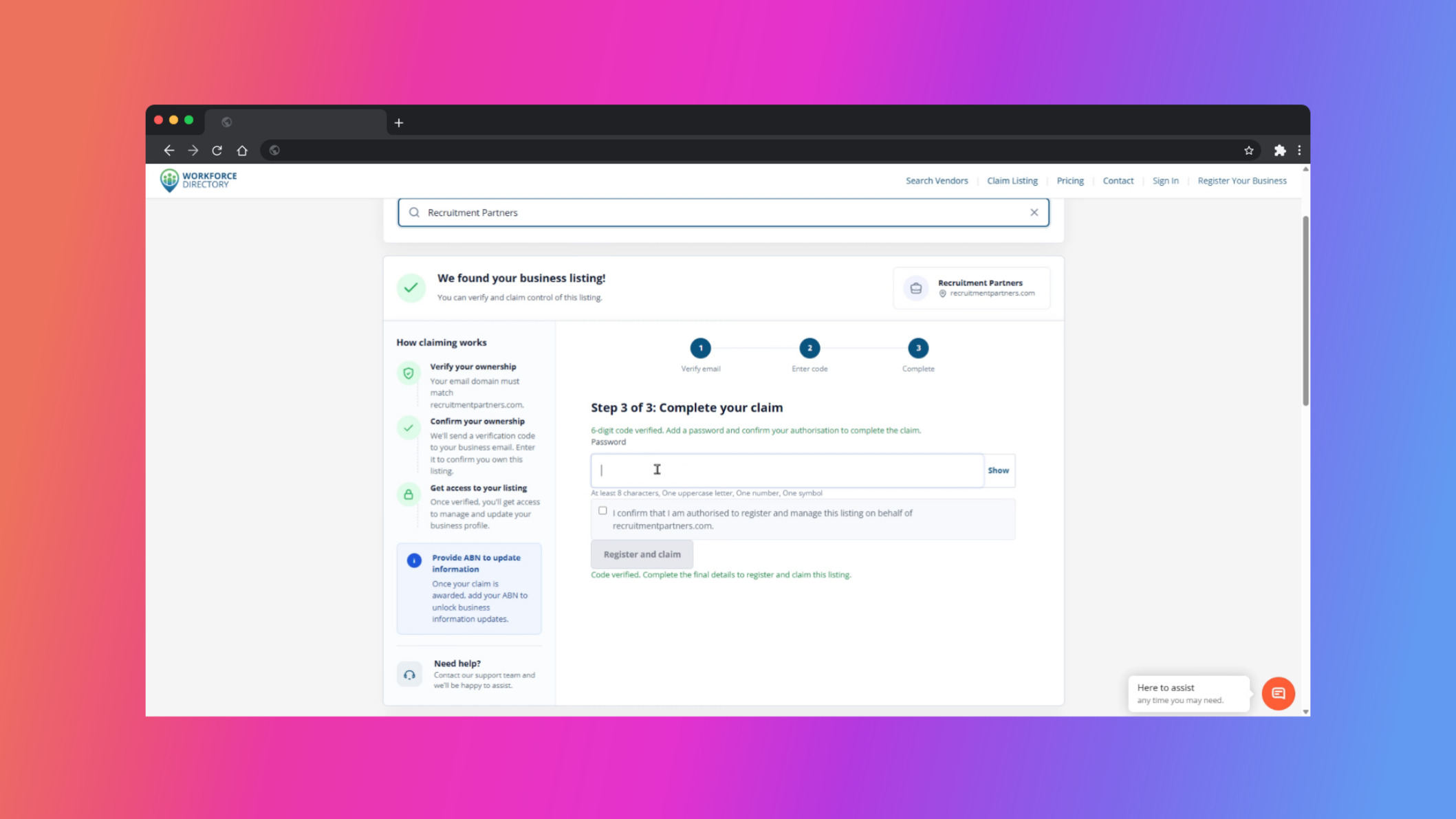
Step 11 Create your account password
Create the password you will use to sign in once your account is ready.
-
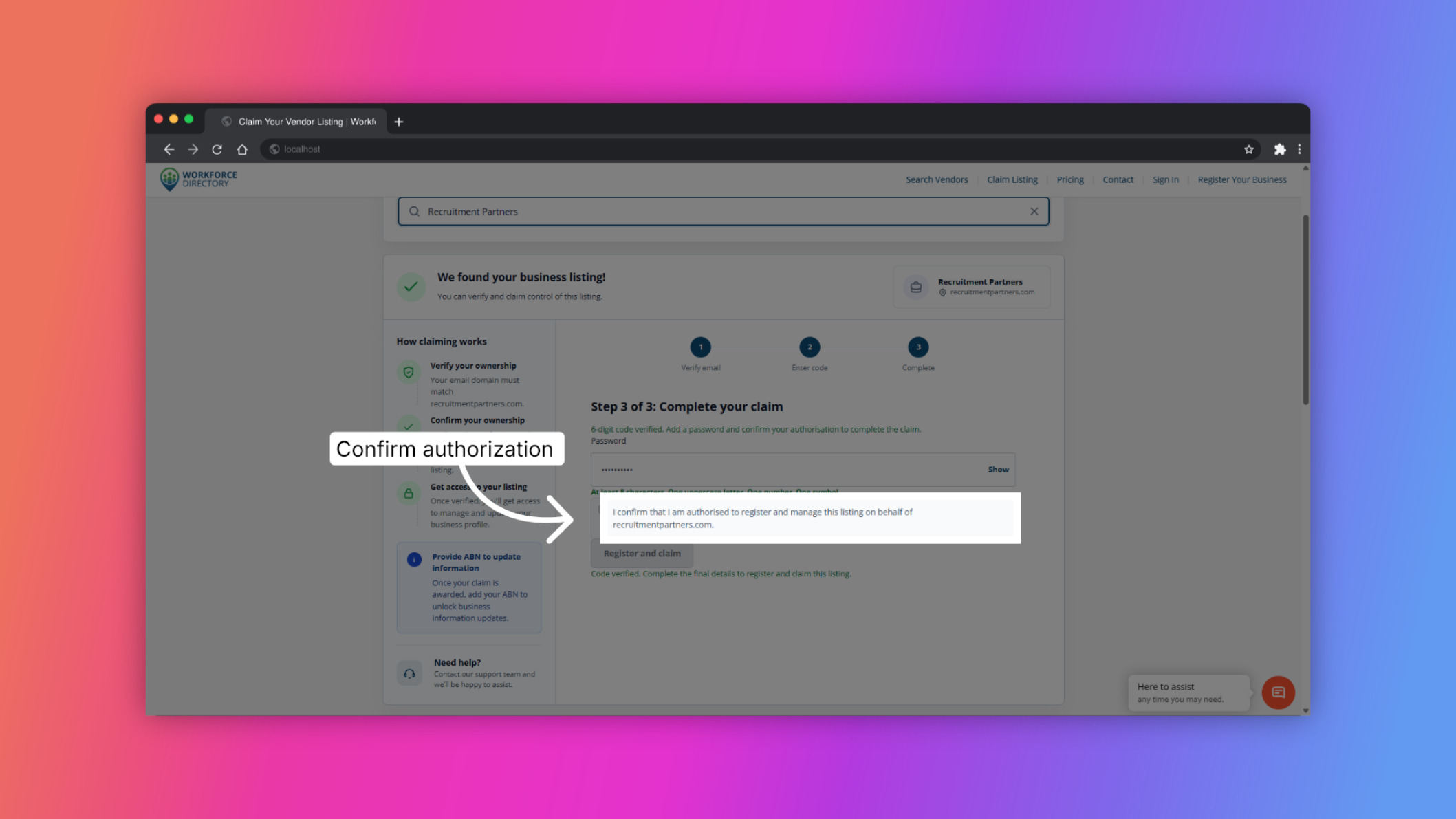
Step 12 Confirm you are authorised
Tick the confirmation that you are authorised to register and manage this vendor listing.
-
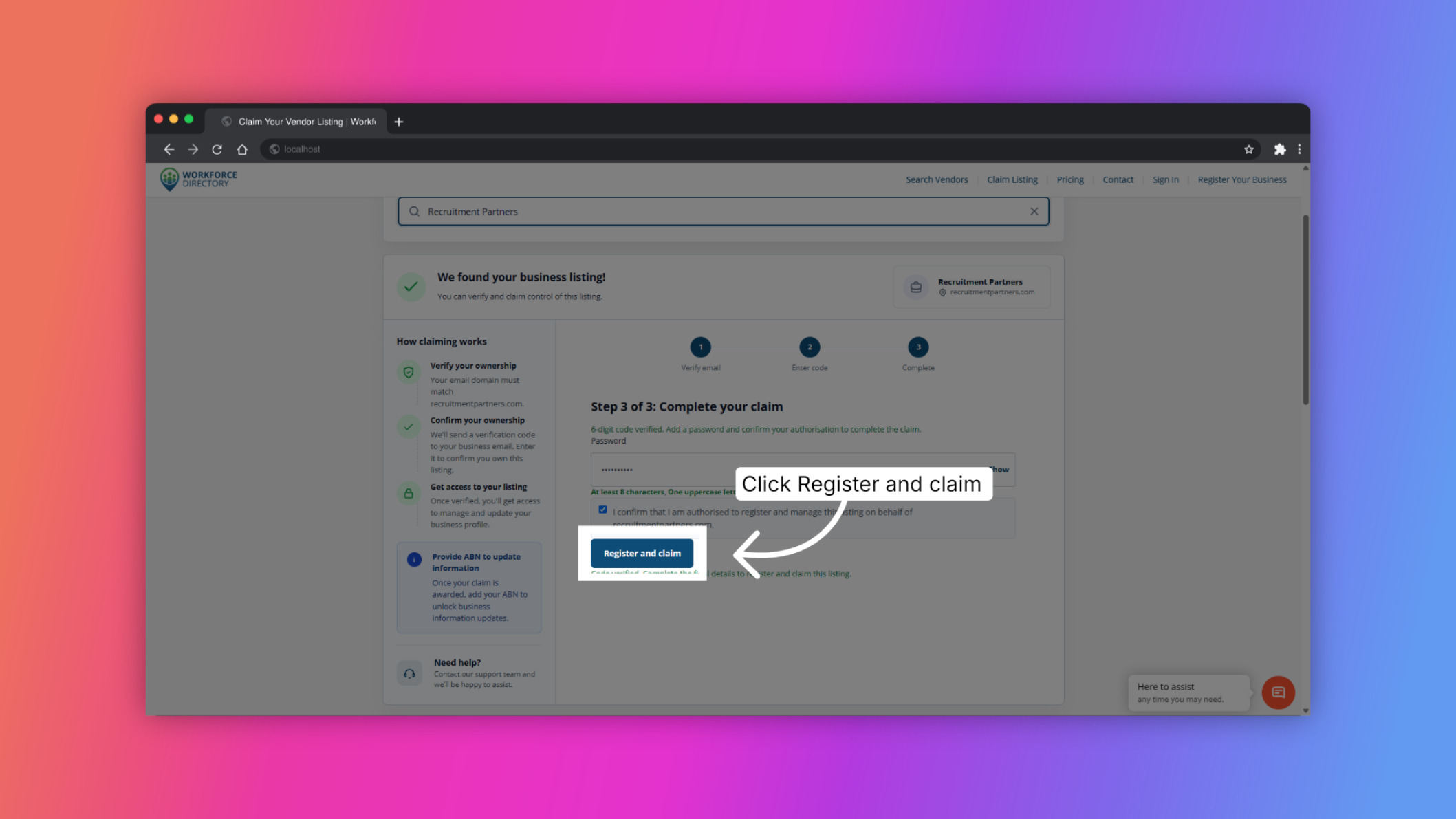
Step 13 Submit your registration and claim
Click Register and claim to create the account and submit the listing claim.
-
Step 14 Open your listing dashboard
Once the claim is complete, you will be redirected to your listing dashboard to manage the vendor profile.